


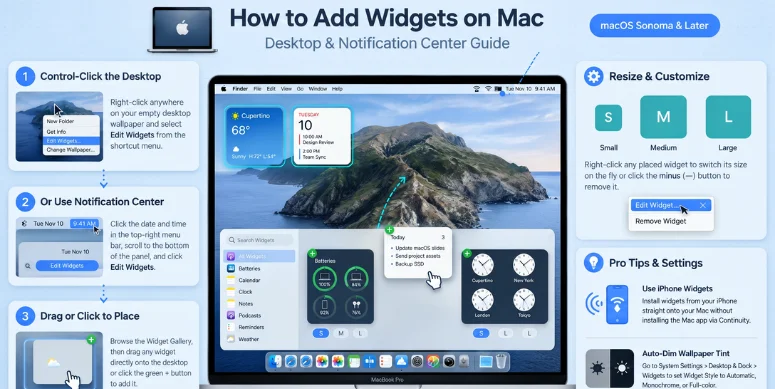
Widgets can put weather, reminders, calendars, batteries, and other useful information directly on your desktop. If you’re learning how to add widgets on Mac, the process only takes a few clicks. Recent macOS versions also support widgets in Notification Center and compatible widgets from your iPhone.
Quick Answer
To add a widget to your Mac desktop, Control-click an empty area and choose Edit Widgets. Search for an app or category, then click a widget or drag it onto the desktop. Choose its position, adjust its size if available, and click Done to close the gallery.
| What you want to do | Where to go | What to select |
|---|---|---|
| Add a desktop widget | Control-click the desktop | Edit Widgets |
| Add a Notification Center widget | Click date and time | Edit Widgets |
| Move a widget | Desktop or Notification Center | Drag it |
| Resize a widget | Control-click the widget | Select an available size |
| Remove a widget | Control-click the widget | Remove Widget |
| Enable iPhone widgets | System Settings > Desktop & Dock | iPhone Widgets |
| Change widget appearance | System Settings > Desktop & Dock | Widget display settings |
What You Need Before Adding Mac Widgets
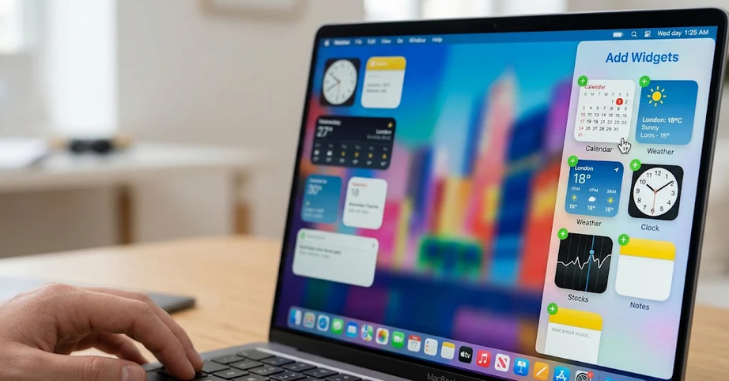
Most people only need access to the Mac desktop and an app that provides a compatible widget. Apple’s current widget gallery includes supported apps and available widget sizes. You can search the gallery instead of scrolling through every category. iPhone widgets have a few additional requirements. Apple says the iPhone must use iOS 17 or later and share your Apple Account.
It must also remain nearby or use the same Wi-Fi network as your Mac. For more software, computer, and device coverage, you can also browse the Magazinted Tech section. It includes broader guides about digital tools and hardware. That can help when building a more productive computer setup.
How to Add Widgets on Mac Desktop in 4 Steps
The desktop method is usually the fastest option. Apple lets you either click a widget for automatic placement or drag it manually. Follow these four steps to set one up.
- Control-click an empty area of your desktop. Use the wallpaper instead of clicking a file, folder, or open application.
- Choose Edit Widgets. The widget gallery will open and display supported apps and categories.
- Find and add your widget. Search by app name, browse a category, or select an available option. Click it for automatic placement or drag it to a specific desktop position.
- Click Done. The gallery closes, while the selected widget remains on your desktop.
You can move the widget after adding it. Drag it to another open area until you like the arrangement. This makes it easy to group related information without reopening the gallery.
How to Add Widgets to Notification Center
Desktop placement is not your only option. Notification Center works well when you want quick information without keeping panels visible behind your windows. Open it by clicking the date and time in the menu bar. Scroll to the bottom and select Edit Widgets. Find the widget you want and click it, or drag it into Notification Center. You can then move the widget higher or lower to change its position.
This setup can be useful for calendars, reminders, weather, or information you check occasionally. Your main desktop stays less crowded during regular work. The information remains available whenever you open Notification Center.
How to Use iPhone Widgets on a Mac
Compatible iPhone widgets can appear inside the Mac widget gallery. This feature can provide access to widgets from apps that are installed on your phone. Apple requires the same Apple Account and a nearby iPhone running iOS 17 or later. Open System Settings, then choose Desktop & Dock.
Scroll to the Widgets section and enable the iPhone widget option. Your supported phone widgets should then become available inside the gallery. Some iPhone-based widgets still depend on the phone’s application. Apple may ask you to open the related app on your iPhone. That usually happens when the application itself is not installed on your Mac.
How to Resize and Customize a Widget
Control-click a widget after placing it on the desktop. Supported widgets may offer several sizes through the shortcut menu. Pick the size that fits your available screen space. Some widgets also provide an Edit [widget name] option. That setting can change the information displayed inside the panel.
A Reminders widget, for example, can be configured to show a different list. Not every application offers the same customization options. If the edit command is missing, the developer may not support additional settings. You can still reposition or remove the panel when those controls are available.
How to Change the Appearance of Desktop Widgets
Open System Settings > Desktop & Dock, then locate the Widgets controls. Current macOS settings let you control desktop visibility and widget appearance. You can also choose whether widgets appear while Stage Manager is active. Apple provides a Dim widgets on desktop setting on current systems. Available choices include automatic behavior, permanent dimming, or no dimming.
These options affect appearance without removing the information inside each panel. If your panels appear gray when you expected color, check this setting first. Selecting an option that keeps them in color may solve the problem. Appearance controls can vary slightly between macOS releases.
Why the Edit Widgets Option May Be Missing
First, make sure you’re clicking the wallpaper itself. Control-clicking an application, file, or folder opens a different shortcut menu. An empty portion of the desktop should display the correct editing option. You should also check whether desktop panels are enabled.
Open System Settings > Desktop & Dock and find the Show Widgets controls. Turn on the desktop option if it has been disabled. Older macOS versions can behave differently from current releases. Desktop placement became a major feature in macOS Sonoma and remains available in newer versions. Updating macOS may therefore be necessary on an older machine.
What to Do When a Widget Does Not Appear
An application will not appear in the gallery unless it offers a compatible widget. Updating the application can help when support was added through a newer release. Restarting the Mac can also refresh the available gallery after an update. For iPhone-based options, confirm that both devices use the same Apple Account. Keep the phone near the Mac or connect both devices to the same Wi-Fi network.
Then verify that iPhone widgets remain enabled in System Settings. If you’re improving a creative workstation, Magazinted’s 2026 AI content creation tools comparison covers several web and desktop tools. Different applications can complement the information you keep visible on your desktop. Choose tools based on your actual workflow rather than filling the screen with unused panels.
How to Remove Widgets From Your Mac
Removing a desktop widget does not uninstall its application. Control-click the widget and choose Remove Widget from the shortcut menu. You can also open Edit Widgets and use the removal control shown on the panel. Notification Center uses a similar process.
Open the panel, Control-click the widget, and select Remove Widget. Apple also lets you hold Option and use the removal button when it appears. Removing panels you rarely use can make your desktop easier to scan. Start with information you need several times each day. Everything else can remain inside its full application or Notification Center.
Desktop Widgets or Notification Center: Which Is Better?
| Placement | Best for | Main advantage | Possible drawback |
|---|---|---|---|
| Desktop | Calendar, weather, reminders, batteries | Always easy to see | Can add visual clutter |
| Notification Center | Occasional updates and secondary information | Keeps the desktop cleaner | Requires opening the panel |
| iPhone widget on desktop | Phone apps without a full Mac app | Extends your iPhone setup | May depend on the nearby iPhone |
Desktop placement works best for information you check constantly. Notification Center is often better for secondary information that does not need permanent screen space. You can use both approaches rather than choosing only one. Consider screen size before adding several large panels. Smaller MacBook displays can become crowded faster than external monitors. Magazinted’s budget laptop guide for video editing provides additional hardware reading for users building a computer-based workspace.
Tips for a Cleaner Widget Setup
Start with two or three useful panels instead of adding everything available. Place related information together, such as Calendar beside Reminders. This arrangement makes the desktop easier to understand at a glance. Choose smaller sizes for simple information like clocks or battery status. Save larger layouts for calendars, weather forecasts, or detailed lists.
You can resize supported widgets later without deleting and rebuilding your setup. Use Notification Center for items you check less often. This keeps the desktop useful without turning it into another dashboard you must manage. A simpler layout usually makes important information easier to spot.
Frequently Asked Questions
How to add widgets on Mac desktop?
Control-click an empty area of the desktop and select Edit Widgets. Find your preferred widget, then click it or drag it onto the desktop. Click Done after you finish arranging your choices.
Can I put iPhone widgets on my Mac?
Yes, compatible iPhone options can appear in the Mac gallery. Apple requires iOS 17 or later, the same Apple Account, and a nearby phone. You must also enable the iPhone widget setting on your Mac.
How do I change a widget’s size on Mac?
Control-click the widget and look for the available size choices. Supported apps may provide small, medium, large, or other layouts. Available sizes depend on the widget’s developer.
Why are my Mac widgets gray?
Your Mac may be dimming desktop panels automatically. Open System Settings > Desktop & Dock and check the dimming controls. Current settings can keep widgets dimmed, colored, or automatically adjusted.
Can I remove a widget without deleting the app?
Yes, removing a panel does not uninstall its application. Control-click the item and select Remove Widget. The original app and its stored information remain on your device.
